
Presentations and office work · Practical guide
How to turn a document into an editable PowerPoint with AI
Turn a Word document, report, or structured source file into a presentation narrative, generate editable slides, and verify the final PPTX before delivery.
Written and reviewed by the OpenMira Product Team · Published Sep 1, 2026 · Reviewed Sep 2, 2026Direct answer
To turn a document into an editable PowerPoint with AI, first define the audience and decision the deck must support. Then map the source headings, evidence, and citations into a slide narrative, generate editable slide objects instead of page screenshots, and open the final PPTX to verify facts, layout, fonts, and editability.
Complete process recording
AI PPT and AI Slides: source material to editable PowerPoint
Watch CS FLOW AI organize source material, generate the slide narrative and visuals, verify the deck, and deliver an editable PPTX.
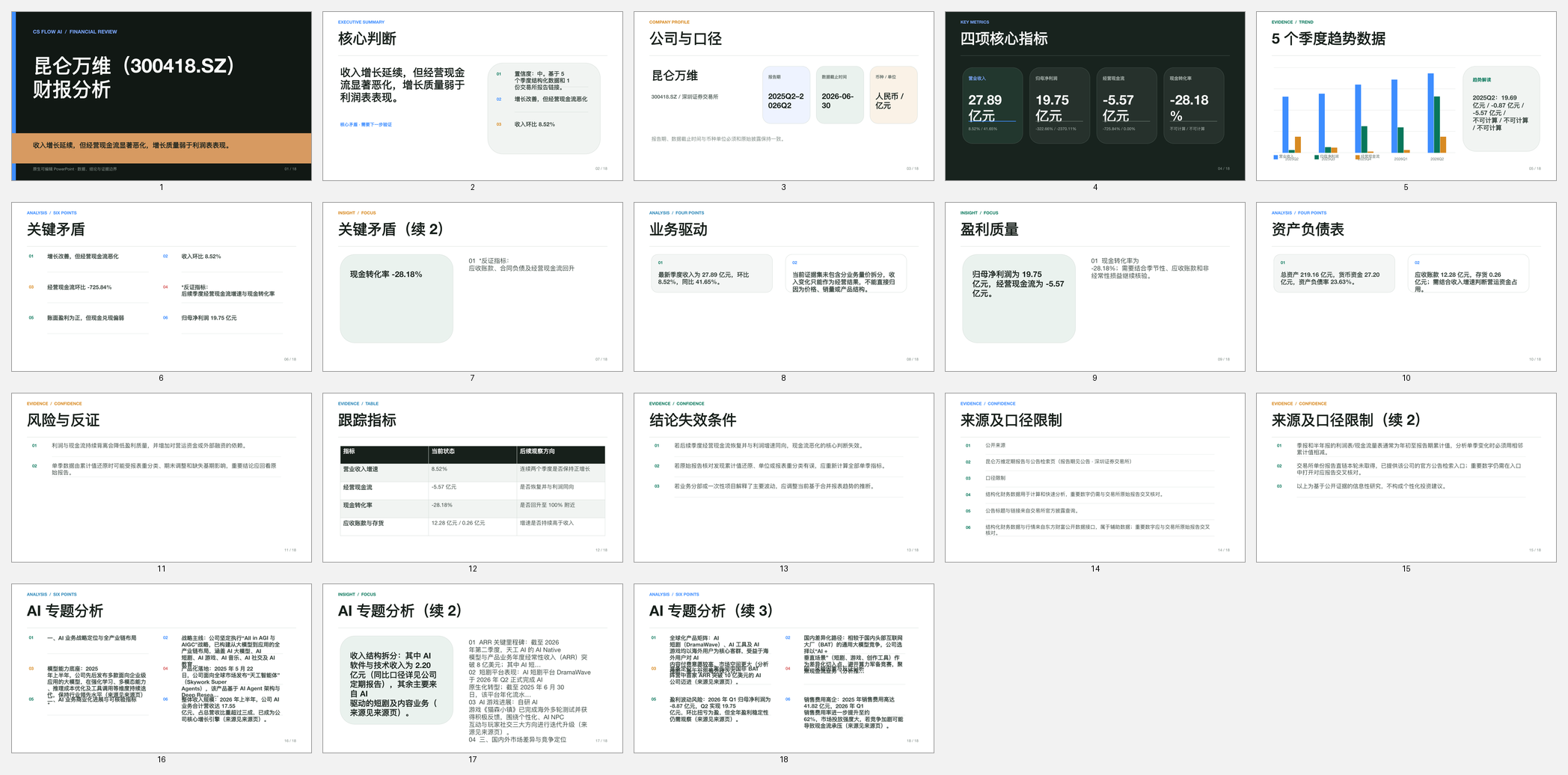
Reproducible workflow
Four steps with a visible verification path
- 01
Define the presentation goal
Provide the source document, intended audience, purpose, preferred slide count, brand requirements, and the facts or sections that must not be omitted.
- 02
Build a slide narrative from the document structure
Use headings and evidence to separate slide titles, supporting points, figures, and citations. Microsoft documents the same outline principle: higher-level headings become slide titles and lower-level headings become supporting content.
- 03
Generate editable slides and visuals
Create a concise narrative with editable text, shapes, charts, and images. Preserve source context for material claims instead of copying each document page into a screenshot.
- 04
Open, verify, and deliver the PPTX
Open the presentation in PowerPoint, compare material claims with the source, inspect text overflow and visual legibility, and confirm that the elements users need to revise remain editable.
Before delivery
Verification checklist
- The audience, decision, and central message are explicit
- Every material number and claim traces back to the source document
- Slide titles form a coherent narrative when read in order
- The PPTX opens successfully and required text, charts, and shapes remain editable
Human responsibility
Important boundaries
- Document conversion requires editorial judgment; one source page should not automatically become one slide
- AI-generated summaries, numbers, quotations, and citations must be checked against the source
- Fonts, charts, linked media, and brand assets may need adjustment in the target PowerPoint environment
Method and sources
Primary references used to verify this guide
External links support applicable rules, boundaries, or example definitions. Product instructions are maintained by the OpenMira Product Team based on the current public version.
- Create a PowerPoint presentation from an outlineMicrosoft Support
- File formats that are supported in PowerPointMicrosoft Support
Frequently asked questions
What to confirm before starting
Can AI convert a Word document directly into an editable PowerPoint?
Yes. A useful workflow extracts the document structure and evidence, reorganizes it for the intended audience, and delivers a PPTX with editable slide elements. The result still needs human review.
Should every document section become a slide?
No. The slide sequence should follow the presentation goal. Important sections may need several slides, while background or repeated material may be condensed or omitted with the source preserved for reference.
How do I verify that an AI-generated deck is truly editable?
Open the PPTX in PowerPoint, edit representative text and shapes, inspect charts and images, and confirm that the deck is not merely a set of full-slide screenshots.
Continue exploring