
PDF and presentations · Practical guide
How to convert a PDF into an editable PowerPoint with AI
Convert native or scanned PDF source material into a presentation narrative, generate editable slides, and verify OCR, facts, layout, and the final PPTX.
Written and reviewed by the OpenMira Product Team · Published Sep 1, 2026 · Reviewed Sep 2, 2026Direct answer
To convert a PDF into an editable PowerPoint with AI, first classify it as a native-text, scanned, or mixed-layout PDF. Extract the source structure or run OCR, map the important claims and visuals, reorganize them for the presentation audience, and deliver a PPTX whose text, shapes, and charts can be checked and edited.
Complete process recording
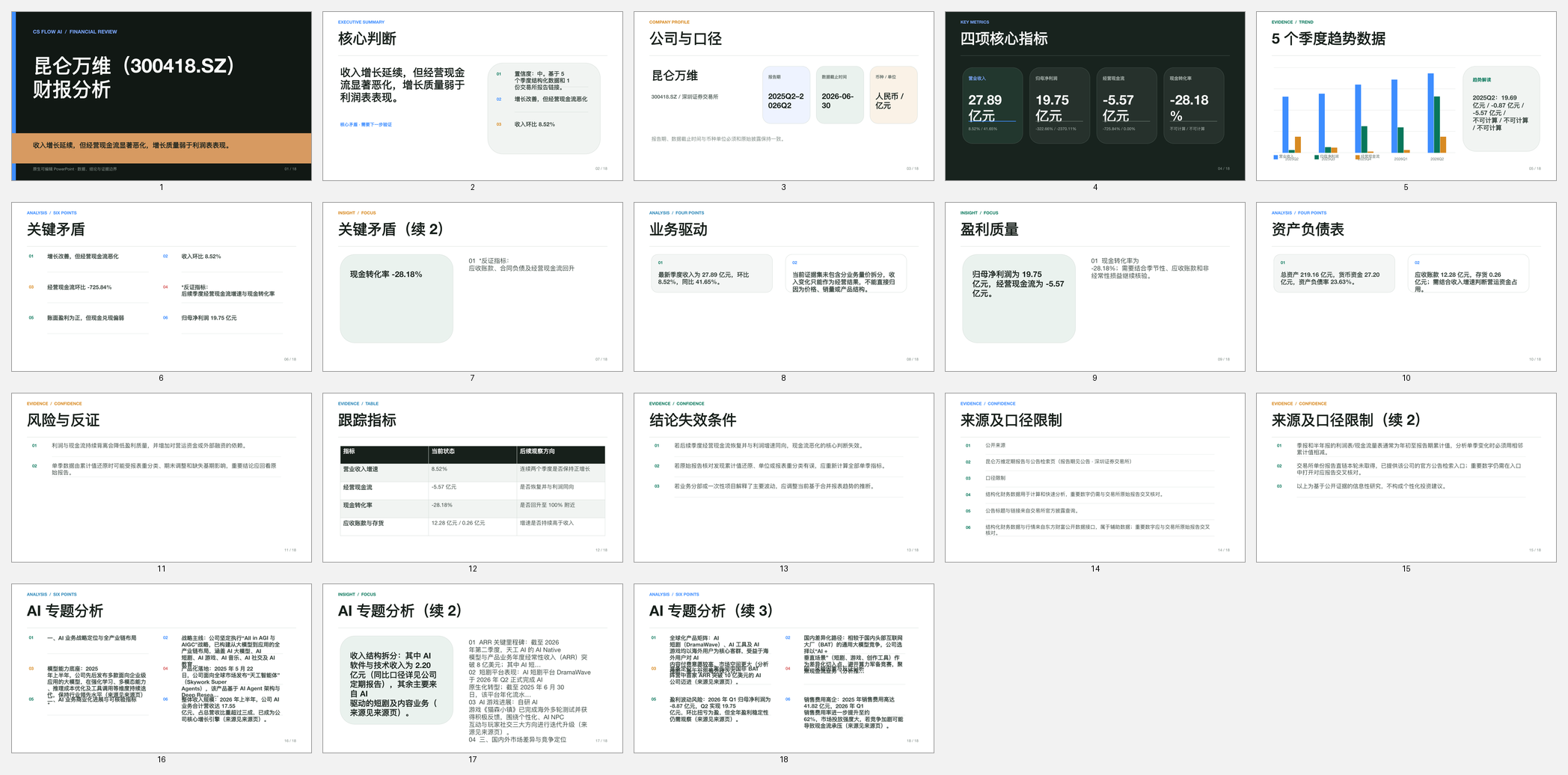
AI PPT and AI Slides: source material to editable PowerPoint
Watch CS FLOW AI organize source material, generate the slide narrative and visuals, verify the deck, and deliver an editable PPTX.
Reproducible workflow
Four steps with a visible verification path
- 01
Classify the PDF before conversion
Check whether the pages contain selectable text, scanned images, complex tables, multiple columns, formulas, or protected content. Confirm the intended audience, decision, slide count, and information that must be preserved.
- 02
Extract text, OCR scans, and build a source map
Extract native text directly and use OCR for image-only pages. Record page references for material claims, figures, tables, and quotations, and flag uncertain recognition instead of guessing.
- 03
Restructure the source into a slide narrative
Group evidence around the presentation goal, write assertion-led slide titles, and select only the figures and details needed to support each point. Avoid converting every PDF page into a slide screenshot.
- 04
Generate, open, and verify the editable PPTX
Create editable text, shapes, tables, charts, and images, then open the PPTX in PowerPoint. Compare facts and OCR output with the PDF, inspect overflow and visual legibility, and test representative elements for editability.
Before delivery
Verification checklist
- OCR-sensitive names, numbers, dates, formulas, and units match the PDF
- Every material claim and figure retains a page reference or source link
- The slide sequence answers the audience question instead of copying page order
- The PPTX opens successfully and required text, shapes, tables, and charts remain editable
Human responsibility
Important boundaries
- Low-resolution scans, handwriting, uncommon fonts, and complex tables may require manual correction
- A PDF-to-PowerPoint workflow is a content transformation, not a promise of pixel-identical page reproduction
- Protected, damaged, or incomplete PDFs may prevent reliable extraction or conversion
Method and sources
Primary references used to verify this guide
External links support applicable rules, boundaries, or example definitions. Product instructions are maintained by the OpenMira Product Team based on the current public version.
- Recognize text in scanned documentsAdobe Acrobat
- File formats that are supported in PowerPointMicrosoft Support
Frequently asked questions
What to confirm before starting
Can a scanned PDF be converted into an editable PowerPoint?
Yes, when the scan is readable enough for OCR. The recognized text, tables, formulas, names, and numbers must be compared with the original pages before the deck is used.
Will every PDF page become one PowerPoint slide?
Not normally. A useful presentation reorganizes the source around the audience and goal. One PDF page may support several slides, or several pages may be condensed into one conclusion.
How is an editable PPTX different from PDF page screenshots?
An editable PPTX lets users revise the text, shapes, tables, charts, and layout. A slide made from one full-page image preserves appearance but does not make the underlying content meaningfully editable.
Continue exploring