
Documents and office work · Practical guide
How to convert PDF to editable Word without losing structure
Choose the right PDF-to-Word method based on the text layer, scan quality, and layout complexity, then verify content and structure before delivery.
Written and reviewed by the OpenMira Product Team · Published Sep 1, 2026 · Reviewed Sep 2, 2026Direct answer
Before converting PDF to Word, determine whether the file contains selectable text, scanned images, or a complex mixed layout. Then choose direct extraction, OCR, or structural reconstruction and carefully review tables, footnotes, pagination, and numbers.
Complete process recording
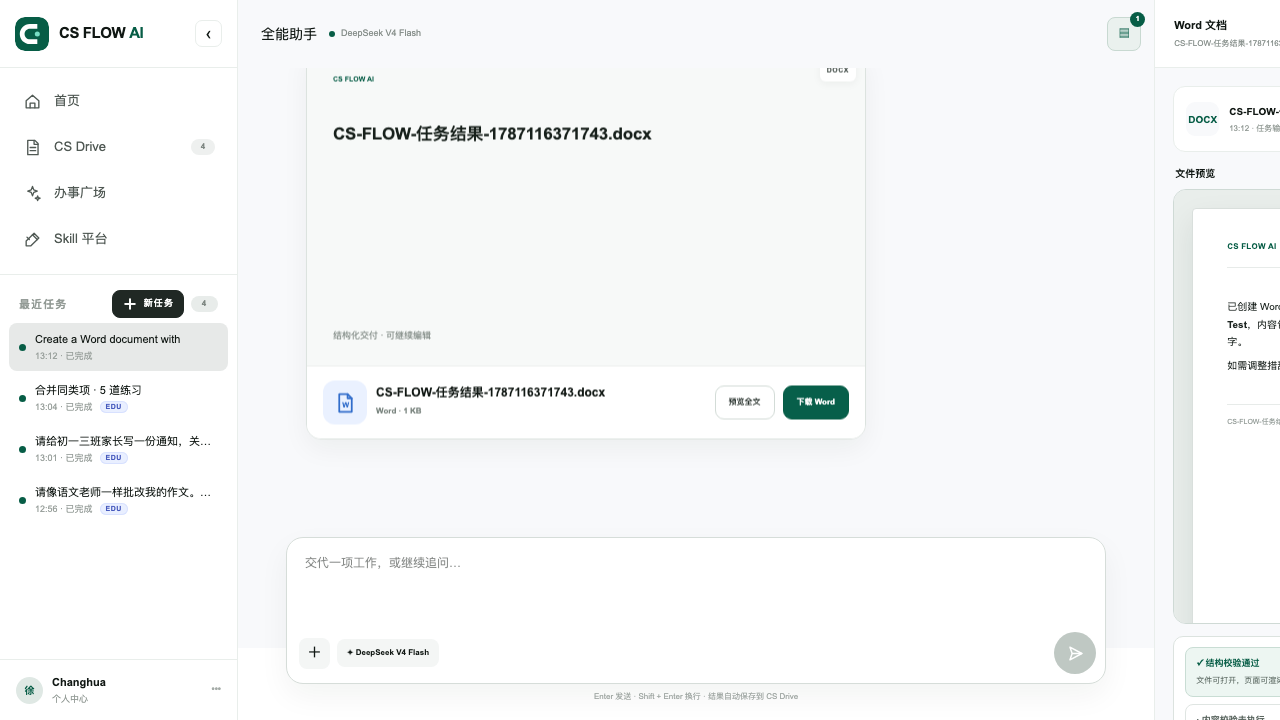
PDF to Word: source document to editable DOCX
Watch CS FLOW AI identify PDF structure, extract or recognize content, rebuild an editable document, and verify the Word delivery.
Reproducible workflow
Four steps with a visible verification path
- 01
Identify the PDF type
Test whether text is selectable and check for scans, multi-column layouts, complex tables, or a large number of formulas.
- 02
Define what must be preserved
Specify whether you need only body text or must retain heading levels, tables, images, headers, footers, and pagination.
- 03
Convert and reconstruct structure
Extract selectable text directly, run OCR on scanned pages, and rebuild complex layouts as an editable document hierarchy.
- 04
Preview and verify item by item
Compare the output against the original PDF for headings, figures, tables, page references, and missing paragraphs before downloading the Word file.
Before delivery
Verification checklist
- Heading levels and reading order are correct
- Numbers, dates, and units were recognized correctly
- Table rows and columns remain aligned
- The generated DOCX opens and can be edited
Human responsibility
Important boundaries
- Low-resolution scans, handwriting, and decorative fonts may require manual entry
- Macros, embedded objects, and uncommon fonts usually cannot be reproduced exactly
- Password-protected or damaged PDFs may not convert completely
Frequently asked questions
What to confirm before starting
Can a scanned PDF be converted to Word?
Yes, by using OCR first. Image quality, tilt, handwriting, and complex tables affect recognition, so the result must be checked against the original.
Why does layout change after PDF-to-Word conversion?
PDF describes fixed page positions, while Word requires reflowable editing structure. Columns, floating images, and uncommon fonts often need to be reorganized.
Do I need to preserve layout when I only need the text?
No. Requesting body-text extraction usually produces a cleaner result that is easier to edit and reuse.
Continue exploring